
The shot was perfect. The kid, the light, the moment. Then the phone stumbles on focus and everything softens into mush. Softonic has a good tutorial on rescuing blurry photos in Photoshop, but most people are not going to open a laptop, buy a Creative Cloud plan, and learn the High Pass filter to save one picture from a birthday party. The good news is that apps for photo sharpening on Android have caught up. AI models trained on millions of faces can rebuild detail that a traditional unsharp mask never could, and a handful of classic editors still handle motion blur and soft focus with a single slider.
We picked eight apps that consistently produce usable results on real phone photos: dim indoor shots, moving subjects, screenshots of documents, and old family scans. Some run entirely on-device. Some upload to a cloud model. All of them are on Google Play and Aptoide.
What to look for in a photo sharpening app
Not every fix is the same job. Motion blur, out-of-focus subjects, and low-resolution scans each need a different tool. Before installing anything, work out what to prioritise.
- AI upscaling vs a traditional unsharp mask. AI is stronger on faces and text; unsharp masks are better on landscapes and product shots you do not want reinterpreted.
- One-tap presets vs manual sliders. A one-tap preset is faster; sliders give you control on tricky shots.
- Batch mode for cleaning a whole camera roll at once.
- Offline processing when photos are private or the network is patchy.
- Watermark policy on the free tier, plus any export size caps.
- RAW support for photos shot in Pro mode or on a real camera.
Quick comparison
| App | Best for | Platforms | Free tier | Starting price/mo | Rating |
|---|---|---|---|---|---|
| Remini | AI face restore | Android, iOS, web | Yes, watermarked | About 5 dollars | 4.5 |
| Snapseed | Free classic edits | Android, iOS | Fully free | Free | 4.4 |
| Adobe Lightroom | Pro control | Android, iOS, desktop, web | Yes | About 10 dollars | 4.4 |
| VSCO | Film look with sharpening | Android, iOS | Yes | About 8 dollars | 4.2 |
| PicsArt | All in one | Android, iOS, web | Yes, watermarked | About 6 dollars | 4.2 |
| Photoshop Express | Quick fix | Android, iOS | Yes | About 5 dollars | 4.3 |
| Fotor | AI enhancer | Android, iOS, web, desktop | Yes | About 9 dollars | 4.3 |
| PhotoDirector | Power-user | Android, iOS, desktop | Yes | About 5 dollars | 4.4 |
The 8 apps
1. Remini: Best for AI face restore on blurry portraits
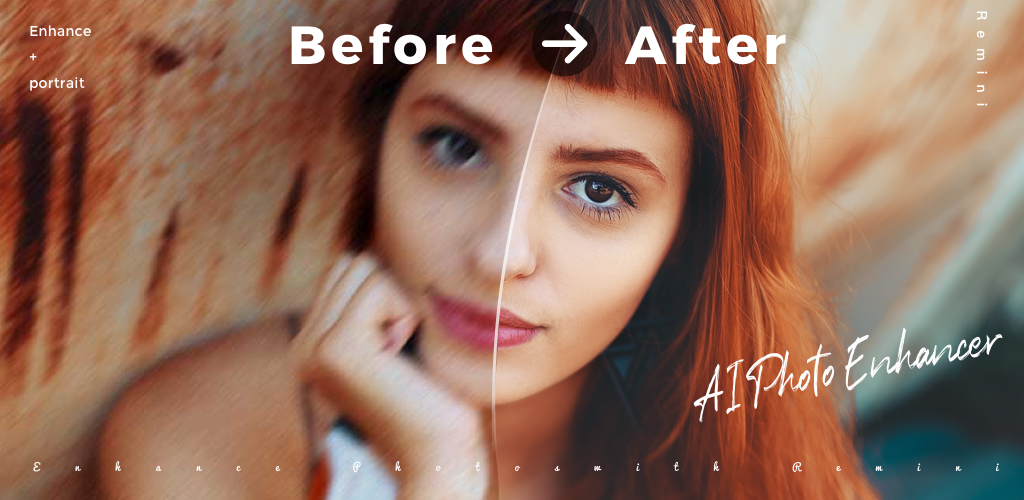
Remini rebuilds detail in faces that a normal sharpen filter cannot recover. The model is trained specifically on portraits and old photos, so soft, pixelated, or scanned images come back with skin texture, eyelashes, and hair strands that look natural rather than plasticky.
Where it falls short: it reinterprets features, so it can subtly change the person. Not the tool for legal or ID work. Pricing: free with watermark and daily limits. Weekly and monthly plans are around 5 dollars a month. Platforms: Android, iOS, web. Download: Aptoide · Google Play Bottom line: the first thing to try on any blurry portrait or old family photo.
2. Snapseed: Best free classic sharpening
Google’s editor is still the reference for careful, non-AI sharpening on Android. The Details tool separates Structure and Sharpen so you can add local contrast without overcooking edges, and Selective lets you sharpen only the eyes or the label on a bottle.
Where it falls short: no AI upscaling, and the app has not seen a major update in a long time. Pricing: completely free with no ads or watermarks. Platforms: Android, iOS. Download: Aptoide · Google Play Bottom line: if the picture only needs a nudge, Snapseed is the honest answer.
3. Adobe Lightroom: Best for pro-grade recovery
Lightroom exposes the same Sharpening, Masking, and Texture sliders as the desktop version, plus the AI Denoise model that often fixes the underlying reason a photo looks soft: sensor noise from a dim room. Shoot in Pro mode and Lightroom will also read the RAW file.
Where it falls short: the Denoise model needs a Creative Cloud subscription, and the interface has a real learning curve. Pricing: limited free tier. Lightroom Mobile Premium is about 10 dollars a month. Platforms: Android, iOS, desktop, web. Download: Google Play Bottom line: the right tool when the photo matters and you want to be the one deciding how sharp it gets.
4. VSCO: Best when the sharpening has to keep a film look
VSCO built its reputation on film emulations, but the Sharpen tool is quietly good. Because it works after the tone curve, sharpening a VSCO recipe does not break the grain or the muted highlights that make those looks work.
Where it falls short: the strongest sharpening and Studio features sit behind VSCO Pro. Pricing: free tier with basic tools. VSCO Membership is around 8 dollars a month. Platforms: Android, iOS. Download: Aptoide · Google Play Bottom line: the pick for photographers who care about mood as much as detail.
5. PicsArt: Best all-in-one editor with a sharpen tool
PicsArt bundles a sharpener next to background removal, an AI enhancer, and every collage tool anyone has ever asked for. Handy when a single photo needs three or four fixes before it is worth posting.
Where it falls short: the free tier pushes upsells and watermarks the AI features. Pricing: free with ads. PicsArt Gold is about 6 dollars a month. Platforms: Android, iOS, web. Download: Aptoide · Google Play Bottom line: the right pick when sharpening is one of five things the photo needs.
6. Photoshop Express: Best quick fix from the Adobe stack
The stripped-down Photoshop mobile app keeps a fast Sharpen slider on the front page and adds a competent AI-powered Enhance that handles denoise and micro-contrast in one tap. Files sync to Creative Cloud if you already live in that world.
Where it falls short: the free tier gates the good filters, and the app is heavier than Snapseed for a similar job. Pricing: free with an Adobe ID. Premium features run about 5 dollars a month. Platforms: Android, iOS. Download: Google Play Bottom line: the fastest way to get an Adobe-quality sharpen on a phone.
7. Fotor: Best AI photo enhancer for general use
Fotor’s AI Enhancer bundles denoise, upscale, and sharpen into a single one-tap fix and does a respectable job on landscapes and product photos where Remini would try to invent faces. Batch mode is on the paid tier but it works cleanly.
Where it falls short: the free daily quota is small, and export resolution is capped without Pro. Pricing: free tier with limits. Fotor Pro is about 9 dollars a month. Platforms: Android, iOS, web, desktop. Download: Aptoide · Google Play Bottom line: the best pick when the subject is a place or an object, not a face.
8. PhotoDirector: Best for power-users who want AI plus manual control
PhotoDirector from CyberLink is the deepest sharpening toolkit on Android that is not a paid subscription trap. AI Deblur handles motion blur, HDR Effect rebuilds shadow detail, and the manual Sharpen tool exposes radius and threshold like a proper desktop editor.
Where it falls short: the interface is dense, and some AI packs are one-off in-app purchases on top of the subscription. Pricing: free with ads and watermarks on AI exports. Premium is about 5 dollars a month. Platforms: Android, iOS, desktop. Download: Aptoide · Google Play Bottom line: the closest thing to Lightroom without paying for Creative Cloud.
How to pick the right one
Start with the subject of the photo. If it is a face, especially an old or pixelated one, open Remini first. It rebuilds detail no other app on this list can touch, and the free tier is enough to test whether the result is good enough for you.
If the photo is a landscape, a product shot, or anything you do not want an AI to reinterpret, Snapseed is still the honest first move. It costs nothing, ships no watermark, and the Details tool gives you Structure and Sharpen as two independent sliders. When Snapseed cannot save it, Lightroom’s AI Denoise usually can, and its RAW pipeline matters if the picture came off a real camera.
For anyone who edits often, a subscription starts to earn its keep. PhotoDirector is the cheapest full-featured pick. Fotor is the friendliest AI-first workflow. Lightroom is the choice when you want your edits to be portable across a phone, a tablet, and a laptop. VSCO belongs in the shortlist for anyone whose look depends on film emulations, and PicsArt for anyone whose photos need three fixes in the same session. Photoshop Express is the middle ground: fast on the front page, but with Adobe’s sharpening model behind the one-tap button.
FAQ
Can an app really fix a blurry photo?
Yes for soft focus, sensor noise, and mild motion blur. No for severe motion smear where the subject has moved across many pixels. AI apps like Remini and Fotor invent the missing detail based on training data, which works well on faces and text and less well on unique objects.
Do free apps for photo sharpening on Android add watermarks?
Snapseed does not. Remini, PicsArt, and Fotor do on free-tier AI features. Lightroom, Photoshop Express, VSCO, and PhotoDirector export unwatermarked at reduced quality on the free tier.
Is it safe to upload personal photos to a cloud sharpener?
Read the privacy policy before uploading anything sensitive. Snapseed and PhotoDirector do most of their work on-device. Remini, Fotor, and the Adobe apps process on their servers. If the photo is private, prefer an on-device workflow.
Which app handles old scanned photos best?
Remini for portraits and Fotor’s Enhance for group shots or scenery. Both were trained on low-resolution material and add believable detail. Snapseed is a good second pass to tune contrast after the AI has done its work.
What resolution can these apps export at?
Snapseed, Lightroom, and PhotoDirector export at the source resolution on the free tier. Remini and Fotor cap free exports at lower resolutions and unlock full size behind the paid tier. Check the app’s export settings before assuming you have the full-size file.
Do any of these work on RAW files?
Lightroom does, and PhotoDirector reads a growing list of RAW formats. Snapseed opens DNG. Remini, VSCO, PicsArt, Photoshop Express, and Fotor are designed around JPEG and PNG.

