
XDA’s piece on Claude Code tidying up a Docker Compose home lab matches the lived experience of half the self-hosting community. The compose-file folder grows organically, one service at a time, and by service number 30 nobody remembers what’s running where. A management UI is the actual fix. These are the seven best desktop apps for Docker Compose management we’d run on a home lab or small team in 2026.
The list mixes web UIs you point at a Docker socket, terminal tools you launch from SSH, and the official Docker Desktop client that ties them together.
What to look for in a Docker Compose management app
Compose tools live or die on small ergonomics. Pick an app that:
- Reads existing compose files from disk rather than re-encoding them in its database. File-based storage survives any future tool swap.
- Surfaces stack-level status alongside container logs. Compose is about stacks; per-container UI buries the relationships.
- Handles updates carefully. Pulling new images and recreating containers is the most common operation; it should be one click with clear behavior.
- Lets you edit YAML inline. The compose file is the source of truth; an editor that round-trips cleanly is worth more than a wizard.
- Supports multiple Docker hosts. Home labs grow; tools that lock you into a single socket get replaced.
- Logs and audit-trails actions. When something breaks at 2 a.m., you want to know which button you pressed last.
- Doesn’t require a paid tier for the basics. Compose UIs you can’t fully use without a license aren’t really free.
Quick comparison
| App | Best for | Free plan | Paid tier | Rating |
|---|---|---|---|---|
| Portainer | Full Docker management UI | Community Edition | Business license per instance | Very High |
| Dockge | Compose-first stack manager | Yes, fully | None | High |
| Komodo | Multi-host Docker + Kubernetes | Yes, fully | None | High |
| Yacht | Lightweight Portainer alternative | Yes, fully | None | Solid |
| Lazydocker | Terminal-UI manager | Yes, fully | None | High |
| Docker Desktop | Official Docker GUI on Mac/Windows | Free for personal | Subscription for orgs | High |
| Olivetin | Web buttons for compose actions | Yes, fully | None | Solid |
1. Portainer – best full Docker management UI
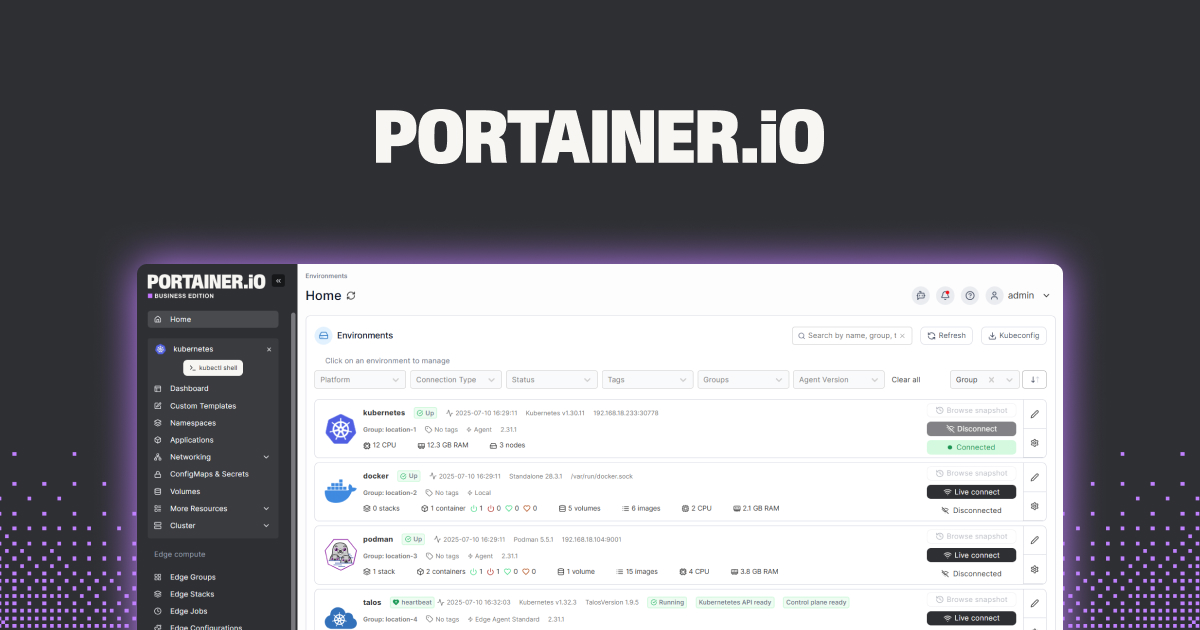
Portainer is the most-deployed Docker management UI in self-hosted setups, and the surface it covers is wider than any single alternative: containers, images, volumes, networks, registries, secrets, stacks, and Kubernetes endpoints in the same dashboard. The Community Edition is fully featured for single-instance deployments; the Business Edition adds RBAC and central management for teams.
Where it falls short: The UI density is high — onboarding takes a couple of evenings. Some quality-of-life features are gated behind Business.
Pricing:
- Free: Community Edition, single endpoint
- Paid: Business Edition, annual license per instance
Platforms: Linux, Windows, macOS (via Docker), Kubernetes
Download: portainer.io or GitHub
Bottom line: Default for any home lab that’s outgrown CLI-only management.
2. Dockge – best compose-first stack manager
Dockge is the compose-first UI Louis Lam built after Uptime Kuma broke out, and the appeal is specific: the tool reads and writes the compose files on disk in their original locations, doesn’t keep a parallel database, and the UI is fast enough to feel local on a Pi. Stack lifecycle (up, down, restart, pull, edit) maps directly to compose commands.
Where it falls short: Compose-only — no plain-container management or Kubernetes. No RBAC.
Pricing:
- Free: Open-source, every feature
- Paid: None
Platforms: Linux, Docker
Download: github.com/louislam/dockge
Bottom line: The right pick if your home lab is compose files all the way down.
3. Komodo – best multi-host Docker + Kubernetes
Komodo (formerly Monitor) is the newer entrant that handles fleets — multiple Docker hosts, mixed compose and Swarm, and a Kubernetes endpoint or two on the same console. The build pipeline ties Git repositories to deployable services, which makes it the closest a self-hosted setup gets to CI without standing up Jenkins.
Where it falls short: Smaller community than Portainer; documentation has gaps. Some operations still require shell access to investigate failures.
Pricing:
- Free: Open-source
- Paid: None
Platforms: Linux, Docker
Bottom line: Pick this if your home lab grew into a small cluster.
4. Yacht – best lightweight Portainer alternative
Yacht is the design-first lightweight UI for self-hosters who found Portainer’s density excessive. Templates make new-stack deployment a one-click affair, the dashboard hides administrative chrome by default, and the resource footprint is small enough that running it next to twenty other containers doesn’t hurt.
Where it falls short: Development pace is slower than Portainer’s. Some advanced features (custom registries, swarm support) aren’t there.
Pricing:
- Free: Open-source
- Paid: None
Platforms: Linux, Docker
Bottom line: Worth running over a weekend if you wanted Portainer to feel calmer.
5. Lazydocker – best terminal-UI manager
Lazydocker is the terminal-UI Docker manager Jesse Duffield built, and the speed feels deeply unfair to web UIs. Containers, images, volumes, logs, stats, and compose stacks are all keystroke-accessible. The keyboard layout takes one evening to internalize and pays back the rest of the year.
Where it falls short: No remote-host support; runs against a single Docker socket. No multi-user.
Pricing:
- Free: Open-source
- Paid: None
Platforms: Linux, macOS, Windows (via WSL)
Download: github.com/jesseduffield/lazydocker
Bottom line: Install on every host you SSH into.
6. Docker Desktop – best official GUI on Mac and Windows
Docker Desktop is the official Docker, Inc. client and the most common starting point on Mac and Windows. The compose view inside the dashboard reads stacks, surfaces logs, and lets you start and stop services with one click. Image management, registry login, and Kubernetes integration are bundled.
Where it falls short: Commercial license required for large organizations. On Linux, the Docker Engine plus a separate UI is usually the better path.
Pricing:
- Free: Personal, educational, and small business use
- Paid: Pro, Team, and Business subscriptions for larger orgs
Platforms: Windows, macOS, Linux
Download: docker.com/products/docker-desktop
Bottom line: The default first-install on a developer machine.
7. Olivetin – best web buttons for compose actions
Olivetin is the surprisingly useful tool for households where one person runs the home lab and the family needs occasional, friendly, single-button actions (“restart the media server”, “start the print monitor”). The web UI is a list of buttons; each button runs a shell command you defined, which can include docker compose calls. Less is the feature.
Where it falls short: Not a general-purpose management UI. Authentication and access control are minimal.
Pricing:
- Free: Open-source
- Paid: None
Platforms: Linux, Docker
Download: olivetin.app
Bottom line: Pair this with Dockge for the family-friendly layer on top.
How to pick the right one
- If you’re starting fresh: Portainer plus Lazydocker for SSH sessions
- If your home lab is compose-only: Dockge is purpose-built
- If you’ve grown into multiple hosts: Komodo
- If Portainer feels too dense: Yacht
- If you’re on Mac or Windows: Docker Desktop first, then a web UI for remote hosts
- If non-technical family members need single-button actions: Olivetin on top of Dockge
FAQ
What is the best free Docker Compose UI? Portainer Community Edition for a full management surface. Dockge if you want a compose-focused tool that stays out of your YAML’s way.
Is Portainer worth the Business Edition fee? For team environments with RBAC needs, yes. For personal home labs, the Community Edition has every feature most users will ever touch.
Can Docker Compose run without a GUI? Yes — Docker Compose works entirely from the CLI and is the most common deployment pattern. UIs add visibility, multi-user access, and ergonomic shortcuts.
What’s the lightest Docker UI for a Raspberry Pi? Dockge runs comfortably on a Pi. Lazydocker over SSH uses essentially no resources on the Pi itself.
Does Docker Desktop work on Linux? Yes, but on Linux the Docker Engine alone is usually preferred. Docker Desktop adds polish but isn’t required.